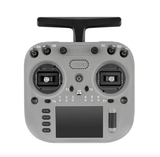
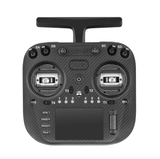
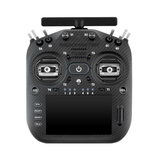
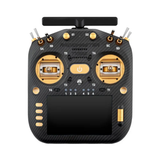
When choosing an FPV drone controller, start with the exact model of the radio receiver fitted to your drone. Its specifications tell you which radio protocol and frequency band the controller needs to support. If you’re buying a controller for a simulator, first check whether the game recognises it on your computer or console. If you want to use the same controller for both, check each separately.
How to read FPV controller specifications
Manufacturers sometimes sell several versions of the same controller. The case, screen and stick layout can look identical even when the versions contain different radio modules. Check the full name of the version you’ve selected, especially if the product page uses one photo for several options with different product codes.
| Specification | What it means | What to check before buying |
|---|---|---|
| Radio control protocol | The rules the controller uses to send commands and the receiver uses to interpret them. | Does the manufacturer list your receiver’s protocol for the specific version of the controller you’re considering? |
| Frequency band | The range of radio frequencies the equipment uses. For example, “2.4 GHz” identifies a band. | Does the controller’s radio module support the band used by the drone’s control receiver? The video system has its own frequency specification. |
| USB joystick or USB HID mode | A mode that lets a computer recognise the controller as a joystick and read its stick movements. | Does your simulator support this mode on your platform? A USB-C socket alone tells you only which plug fits. |
How to check compatibility with a training quadcopter
Suppose a racing quadcopter’s product page says “2.4 GHz” and the same marking appears on the controller box. The two devices can share a frequency band and still use different protocols. The reverse is also possible. Two radio modules from the same protocol family can be designed for different frequency bands.
When comparing models in the FPV drone catalogue, open the specifications for the configuration you’ve selected. Look for “Radio receiver” or “Receiver”, then check the full model designation against the controller manufacturer’s documentation. If the manufacturer lists compatible devices by model, match both the model name and the hardware revision. This is especially important for proprietary systems where compatibility depends on the equipment generation.
If the listing only names the camera or goggles, ask which radio control receiver is fitted. The distinction also matters when choosing FPV drone accessories. Check goggles against the video system and a controller against the radio control system. “FPV” stands for “first-person view” and describes how the pilot sees the camera feed.
What to check if you’re starting with a simulator
With a supported wired connection, the simulator reads stick movements over USB. You’ll need a controller with a USB joystick mode, a cable that carries data and a simulator that supports the controller. If the controller charges when plugged into the computer but the game fails to detect it, check the cable specifications. Some cables support charging only.
Check support for the platform you’ll actually use. For example, the Liftoff developer describes connection options and model-specific details in its controller support guide. If you own the console edition, use the instructions for that console.
How to choose a comfortable controller and stick layout
Once you’ve found compatible controllers, compare how they fit your hands. Some pilots rest their thumbs on top of the two control sticks. Others pinch each stick tip between thumb and forefinger. A compact controller can feel comfortable with a thumb grip yet leave too little finger room for a pinch grip.
- If you can try the controller in person, hold it with your usual grip and slowly move each stick around the edge of its travel. Notice whether you have to stretch or shift your hand to reach a far corner.
- If you’re shopping online, compare the controller’s width and weight with a controller you already use. Check whether the quoted weight includes the battery. Product photos without a reference for scale can make different sizes look alike.
- If you’ve practised at a club or with an instructor, think back to which hand controlled the throttle. Mode 2 places the throttle on the left stick, while Mode 1 places it on the right. Check the layout of the version you’re ordering so you can keep the stick movements you’ve learned.
When asking for help choosing a controller, include the full model name of your training quadcopter’s receiver. If you plan to use a simulator, include the game title and platform as well. If the marking is hard to read, a photo of the product code on the box can help the adviser identify which version to check.
Frequently asked questions about FPV controllers
Will any controller marked 2.4 GHz work with my drone?
The 2.4 GHz marking identifies the frequency band. You also need to check the radio control protocol and confirm that the specific controller version supports your receiver.
Can I choose a controller based on my FPV goggles?
The goggles alone give you too little information to establish controller compatibility. For a proprietary system, check the manufacturer’s list of supported devices for your quadcopter. If the drone has a separate radio control receiver, check its model.
Do I need a quadcopter to practise in an FPV simulator?
You can practise with a supported USB controller without owning a quadcopter. Before buying, check the simulator’s controller requirements for your computer or console.
Which FPV controller should I choose if I haven’t picked a drone yet?
Start with a controller that feels comfortable and is supported by your simulator. Keep a record of the exact controller version so you can check it against the receiver in any quadcopter you consider later.